Transcripts
Find Discord transcripts, review logged messages, and export a conversation.
Use transcripts to revisit a conversation after it closes. Modmail provides a Discord HTML file from the ticket channel and a dashboard view of logged messages. You can export the dashboard record when you need a separate copy.
Find the automatic Discord transcript
After a normal close, look in the category's Transcript channel. The post
includes an HTML file, such as ticket-42-transcript.html, and a summary
with the ticket ID, member, category, opener, closer, and dates. Select
View In Dashboard to open the ticket record.
The summary shows rating status and any response. Until the member rates, it can show Awaiting response.
If the transcript destination is missing or the bot can't post there, look for the HTML file on the closing confirmation in the ticket channel. Save that file before deleting the channel if you need it.
Understand what's in the HTML file
The automatic file follows the channel history from oldest to newest, including the opening summary and staff conversation. Interactive cards can appear as readable text rather than working controls. Images are linked, not embedded, so the file isn't an independent backup of image attachments.
Modmail generates this file during a normal close. If the open channel was deleted first, use the logged dashboard messages instead. See Recover lost tickets.
Read the dashboard record
Open Tickets in your group's dashboard. Filter by status, bot, opener, closer, or date, then select a ticket. The record includes its participants, category, dates, subscribers, and rating.
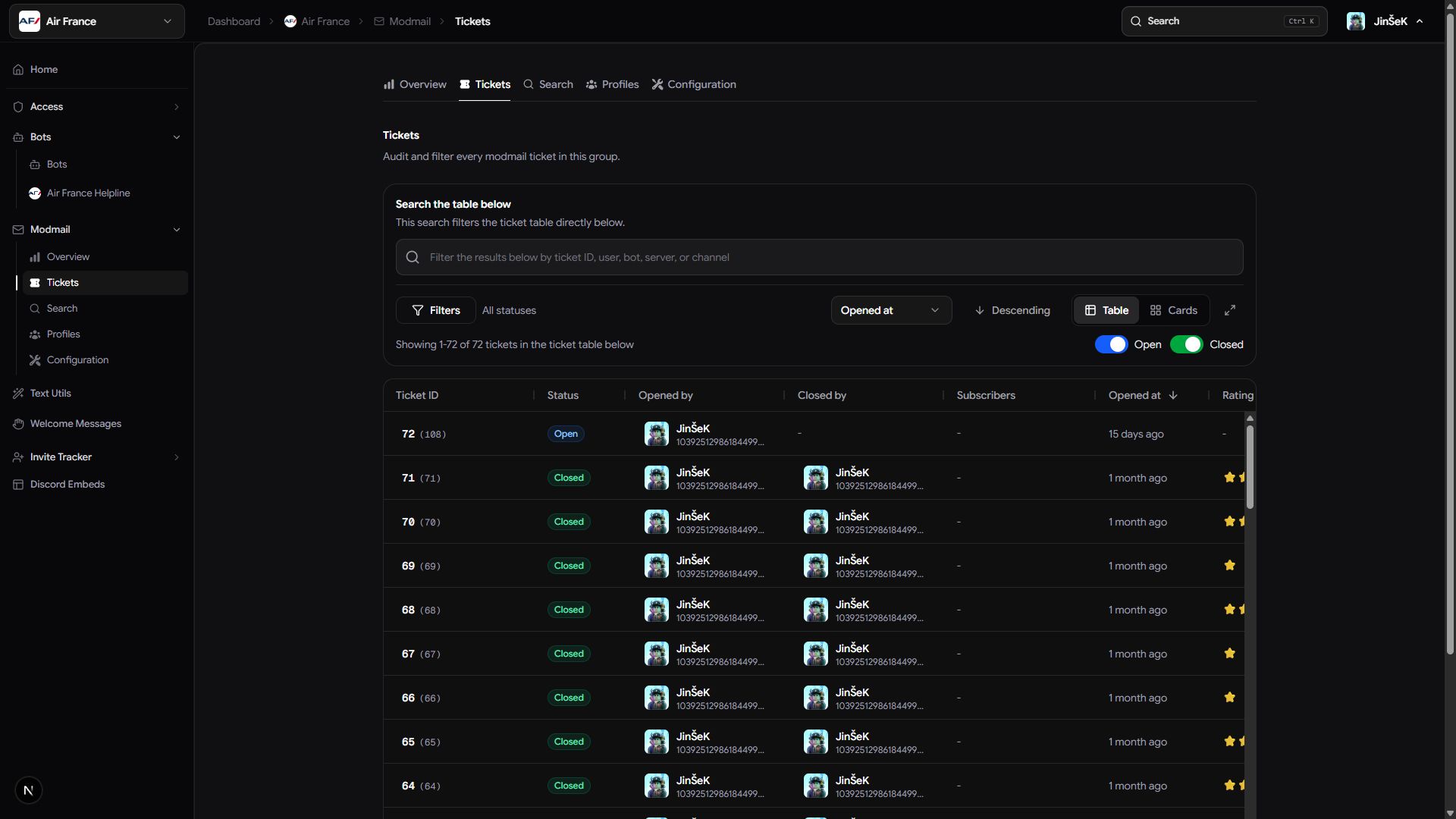
Choose the view that fits your review:
| Control | What it shows |
|---|---|
| Conversation | The member-facing exchange. |
| Channel | The conversation as it appeared in the staff channel. |
| Show edited | Logged edits and earlier wording. |
| Show deleted | Messages logged before they were deleted. |
| Show internal | Staff-only notes. |
Deleting the Discord channel doesn't remove messages already logged in the dashboard. When sharing records, review whether internal notes or other sensitive content are included.
Export a transcript
Open the ticket record before choosing an export format.
- Select Export at the top of the transcript page.
- Choose Text (MDX) for a Markdown copy with ticket details, HTML for a standalone Discord-styled page, or PDF for a printable view.
- For text or HTML, check your downloads. For PDF, use the browser's print dialog to save a PDF.
Exports include the ticket ID in the filename. If the PDF window doesn't open, allow pop-ups for the dashboard and try again.
Next steps
Search across ticket messages, review a member's history, or read your feedback results.
Last updated on