Manage your blacklist
Review restrictions, adjust expiries, and let members contact support again.
Use Blacklist to review restrictions, change an expiry, or let a member contact support again. Select the correct bot first; each bot has its own list.
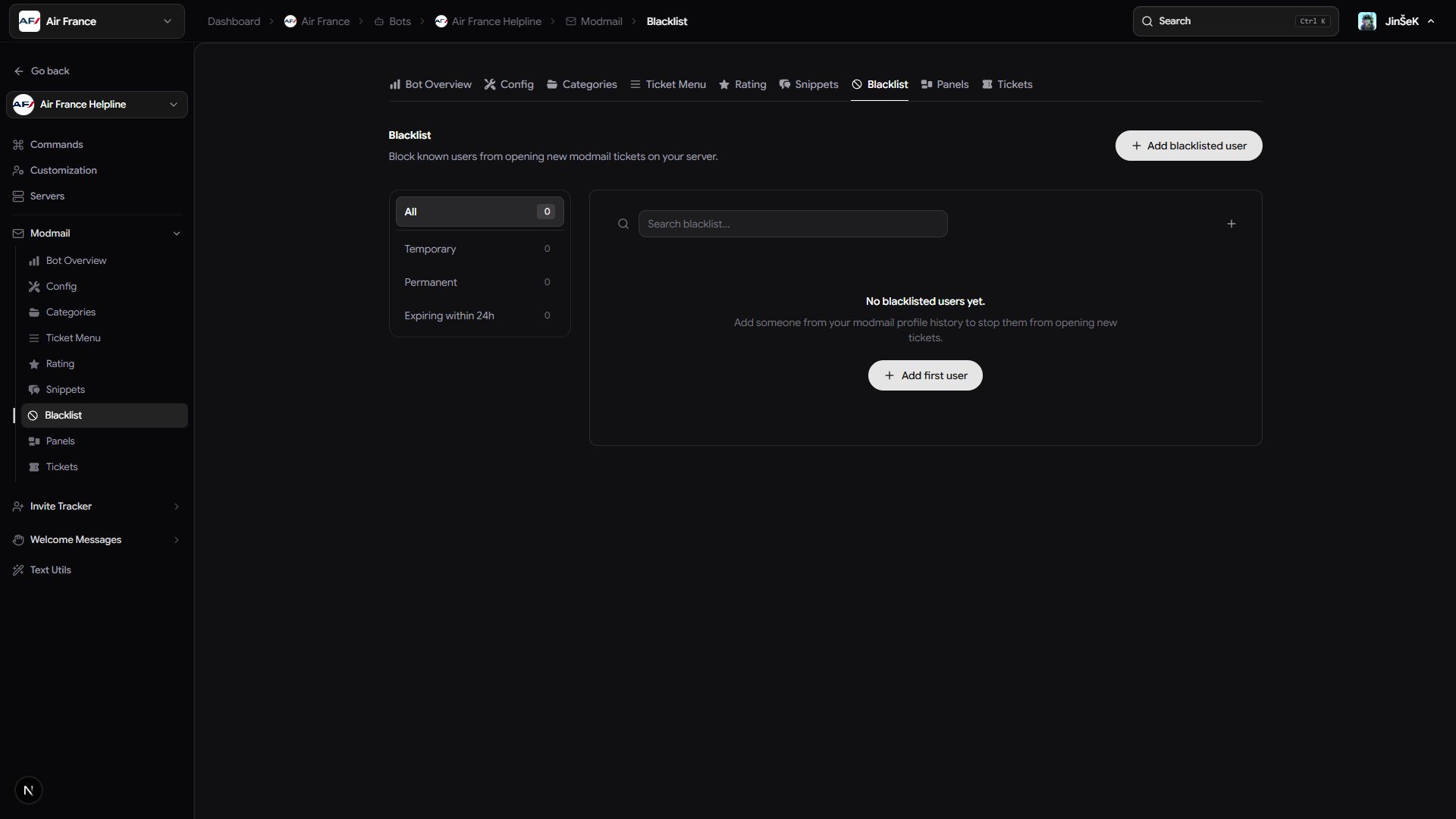
Find an entry
Search by member name or Discord user ID. Filter by All, Temporary, Permanent, or Expiring within 24h. Summary cards show active entries, permanent blocks, and blocks expiring within a day.
You can sort by name or expiry date. The default puts the soonest expiries first. Expired entries stop blocking members automatically, even if a view hasn't refreshed yet.
In Discord, run /modmail blacklist list for a private list with expiry
countdowns and permanent entries marked "(forever)." It shows 20 users per
page; set page to see more. An empty list reports no blacklisted users.
Change an expiry
Open the entry rather than creating a new one.
- On Blacklist, select the member's entry.
- Change Permanent, or set a new Time or Date expiry.
- Check the preview, then select Save Changes.
The same expiry requirements apply as when creating a block.
In Discord, use /modmail blacklist edit with user and newexpire.
Enter a duration such as in 6 months, or permanent or forever to remove
the expiry. Leaving the value empty keeps the existing expiry.
Remove a block early
Removing the entry lets the member open new tickets immediately, subject to your other support settings.
- Find the member on Blacklist.
- Select the row's remove button.
- Review and confirm removal.
In Discord, /modmail blacklist remove with user does the same thing.
If you only want to shorten a block, edit the expiry instead. To restore a
removed block, create it again.
Review ongoing restrictions
Use Expiring within 24h to review upcoming expiries and Permanent to check blocks with no end date. Keep reasons in your own moderation records; blacklist entries don't include notes.
No action is needed when a temporary block ends. The member can use the bot or a panel again, and the expiry doesn't send them a separate notification.
Next steps
Add a block, or review the scope of blacklisting.
Last updated on