Manage categories
Create support routes and manage their messages, roles, transcripts, and shared defaults.
Use Categories to set where tickets open, who handles them, and what members receive. Your Ticket Menu can link to a category in several places without duplicating these settings.
Set shared defaults
In the dashboard, select your group and bot, then open Modmail > Categories. Start with the defaults above Category library.
| Setting | What it controls |
|---|---|
| Transcript channel | Where closed-ticket transcripts go. |
| Staff roles | Who can see and reply in new ticket channels. |
| Admin roles | Who can perform category admin actions, such as moving tickets. |
| Ping roles | Who is mentioned when tickets open. Accepts roles, @everyone, and @here. |
Select Save Changes to apply the defaults. Categories follow them unless you turn on an individual override.
Create a category
Choose a destination and opening message before adding the route to your menu.
- Select Create category.
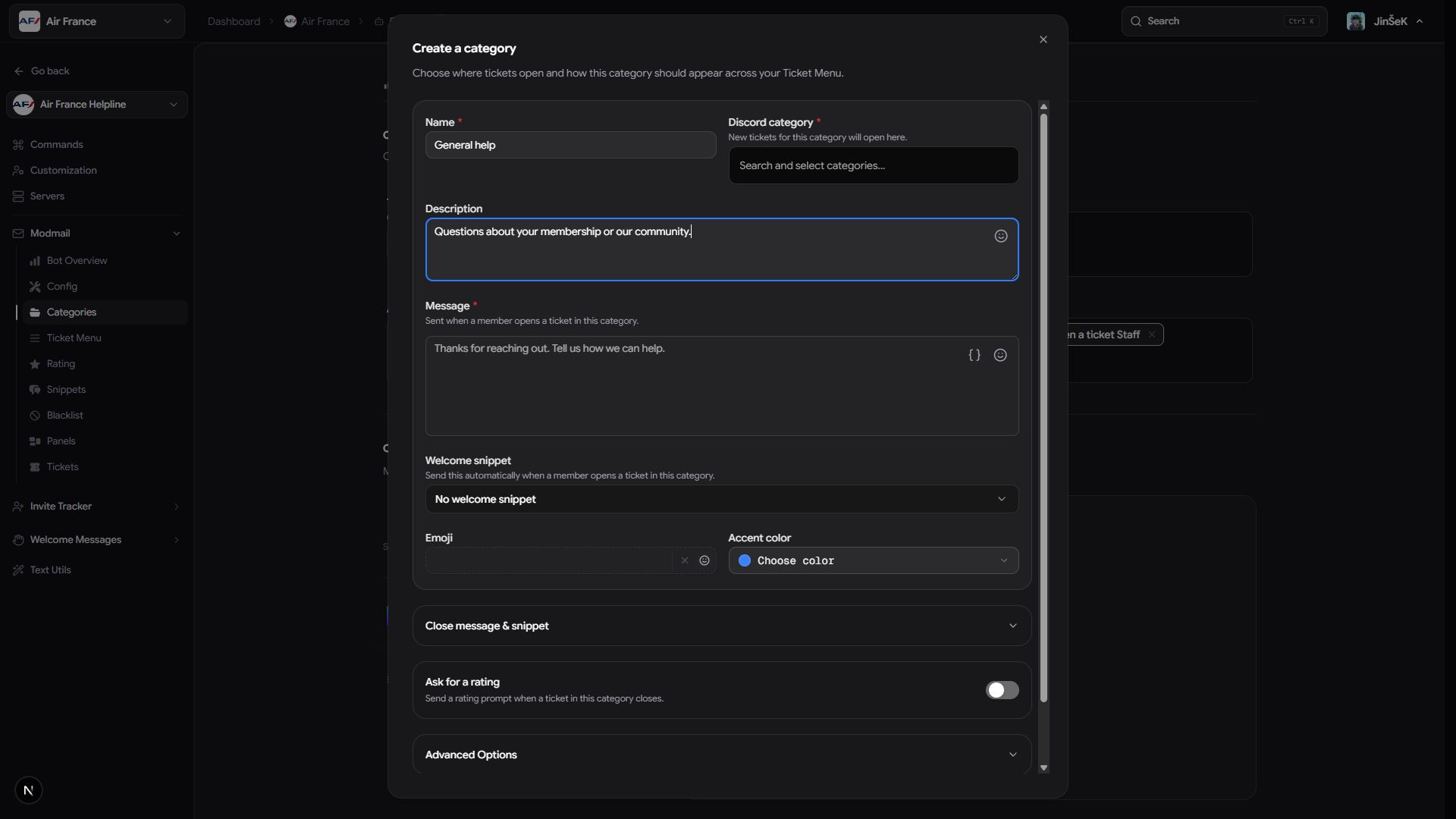
- Enter Name, choose Discord category, and write the opening message.
- Optional: Add a description, emoji, and other settings.
- Confirm creation. The category appears in the library immediately.
- On Ticket Menu, add an action pointing to this category if members need to choose it.
Edit a category
Select a category in the library to open its editor. On smaller screens, the same fields open in a dialog.
Change the fields you need, then select Save Changes. You can edit several categories before saving. Reset discards all unsaved edits and staged deletions. If saving is unavailable, complete the required fields in every edited category.
Choose names and messages
These fields control how members recognize the route and what happens when they open or close a ticket.
| Field | Requirement or effect |
|---|---|
| Name | Required, up to 100 characters. |
| Discord category | Required destination for new ticket channels. |
| Description | Optional menu explanation, up to 100 characters. |
| Opening message | Required, 1 to 4,000 characters; supports template variables. |
| Welcome snippet | Optional saved reply sent after the opening message. |
| Emoji and Accent color | Optional menu styling. |
Under Close message & snippet, write an optional close message of up to 2,000 characters and choose a close snippet if needed. A blank close message skips both. Hide the snippet author is on by default.
Override roles or transcript destinations
Under Advanced Options, turn on the switch for a setting you want to customize: Transcript channel, Staff roles, Admin roles, or Ping roles. Choose the category's value, then save.
With an override off, the category follows the shared default. Selecting a dimmed field takes you to that default so you can review it.
Choose whether to ask for a rating
After enabling ratings in Config, use Ask for a rating for this category. Its rating Advanced Options can override Rating style, Written feedback, Feedback invitation, and Thank-you message. The two messages accept up to 1,000 characters each.
For the full setup, read Turn on ratings.
Remove a category
Remove its Ticket Menu entries first. The delete action is unavailable while any menu entry still points to the category.
- On Ticket Menu, remove the linked entries and save.
- Return to Categories and select the category's delete button.
- Review and confirm the removal.
- Select Save Changes, or Reset to cancel the staged deletion.
If past tickets reference the category, it becomes a read-only historical category and their labels remain available. Otherwise, it's removed permanently. Show historical reveals archived categories; you can't switch this view while you have unsaved changes.
Next steps
Last updated on