Create a panel
Build a Discord ticket launcher with a message, support choices, and clear controls.
Create a panel to give members a ticket launcher in a Discord channel. Choose a message, a starting set of ticket options, and buttons or a dropdown. Saving keeps it in the dashboard; sending publishes a copy in Discord.
Open the panel builder
In the dashboard, select your group and bot, then open Modmail > Panels. Select New panel, or select an existing panel to edit it. The Discord preview updates as you change fields.
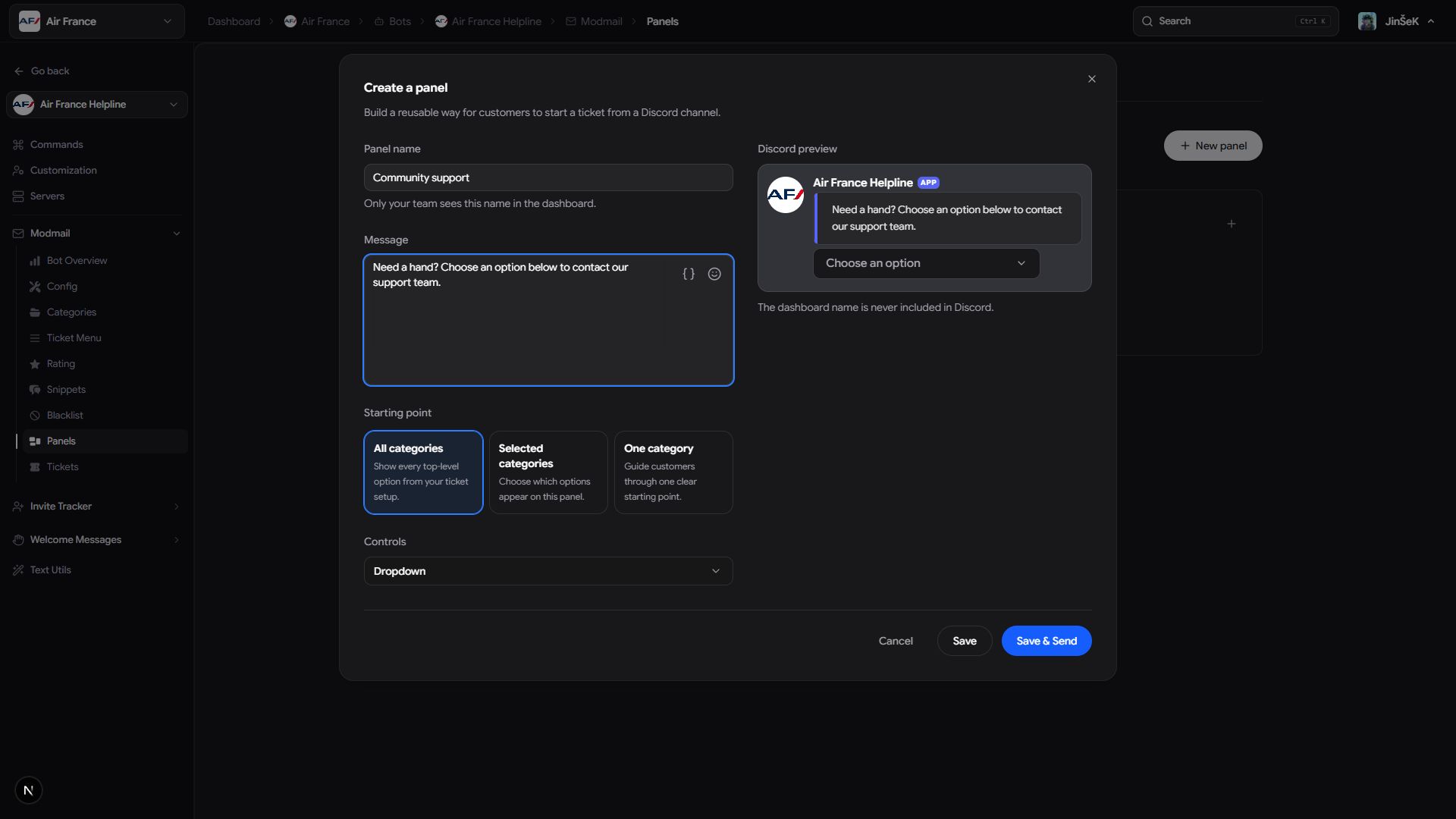
Name the panel and write its message
Give your team a recognizable name and members a clear invitation to ask for help.
- Enter Panel name, up to 100 characters. It must be unique for this bot and is only visible in the dashboard.
- Write Message, between 1 and 4,000 characters.
- Optional: Insert template variables with the composer, such as
{{server.name}}.
Variables resolve when you send the panel. Unrecognized variables stay as written, so check the message before publishing. The variable reference explains availability; member and ticket details aren't available before a ticket exists.
Choose which options to offer
Starting point draws from top-level entries in your Ticket Menu. Nested choices remain available when members enter those groups.
| Starting point | Choices on the panel |
|---|---|
| All categories | Every top-level option available when you send. |
| Selected categories | The options you select, each appearing once. Select at least one. |
| One category | One starting option with a dedicated button. |
Switching modes keeps selections that still fit. Switching to one category reduces the selection to one option.
Choose the controls
For all or selected categories, choose Dropdown or Buttons under Controls. Dropdowns show option titles, descriptions, and emoji. Buttons appear in rows of up to five and use the title, color, and emoji from your Ticket Menu. Edit those settings at the source to change them.
For One category, customize the dedicated button instead:
- Button text is required and accepts up to 80 characters. It starts as "Open ticket."
- Button style can be Primary, Secondary, Success, or Danger.
- Emoji is optional, up to 100 characters. A custom emoji must be usable by the bot in the destination server.
Preview and save
Check the preview for readable labels and the right ticket choices. The internal panel name doesn't appear in Discord.
- Select Save to keep the panel without publishing it.
- Or select Save & Send to save and choose a Discord destination.
- If the editor marks a field, correct it before saving again.
If a menu option used by this panel is deleted later, reopen the panel, review its choices, and save before sending again.
Next steps
Send your panel to Discord. Before updating a published copy, review how static panels work.
Last updated on