Turn on ratings
Enable support ratings and choose which categories ask for scores and written feedback.
Ask members for a one-to-five-star rating when their ticket closes. You can also offer optional written feedback. Enable ratings for the bot, then choose which categories collect them.
Enable customer ratings
Start with a working Modmail setup and dashboard permission to edit the bot's settings. Ratings are off by default.
- Select your group and bot in the dashboard.
- Open Config.
- Turn on Customer ratings and save if the page has unsaved changes.
- Select Customize ratings to open Rating.
Opening Rating while customer ratings are off returns you to Config.
Choose the rating controls
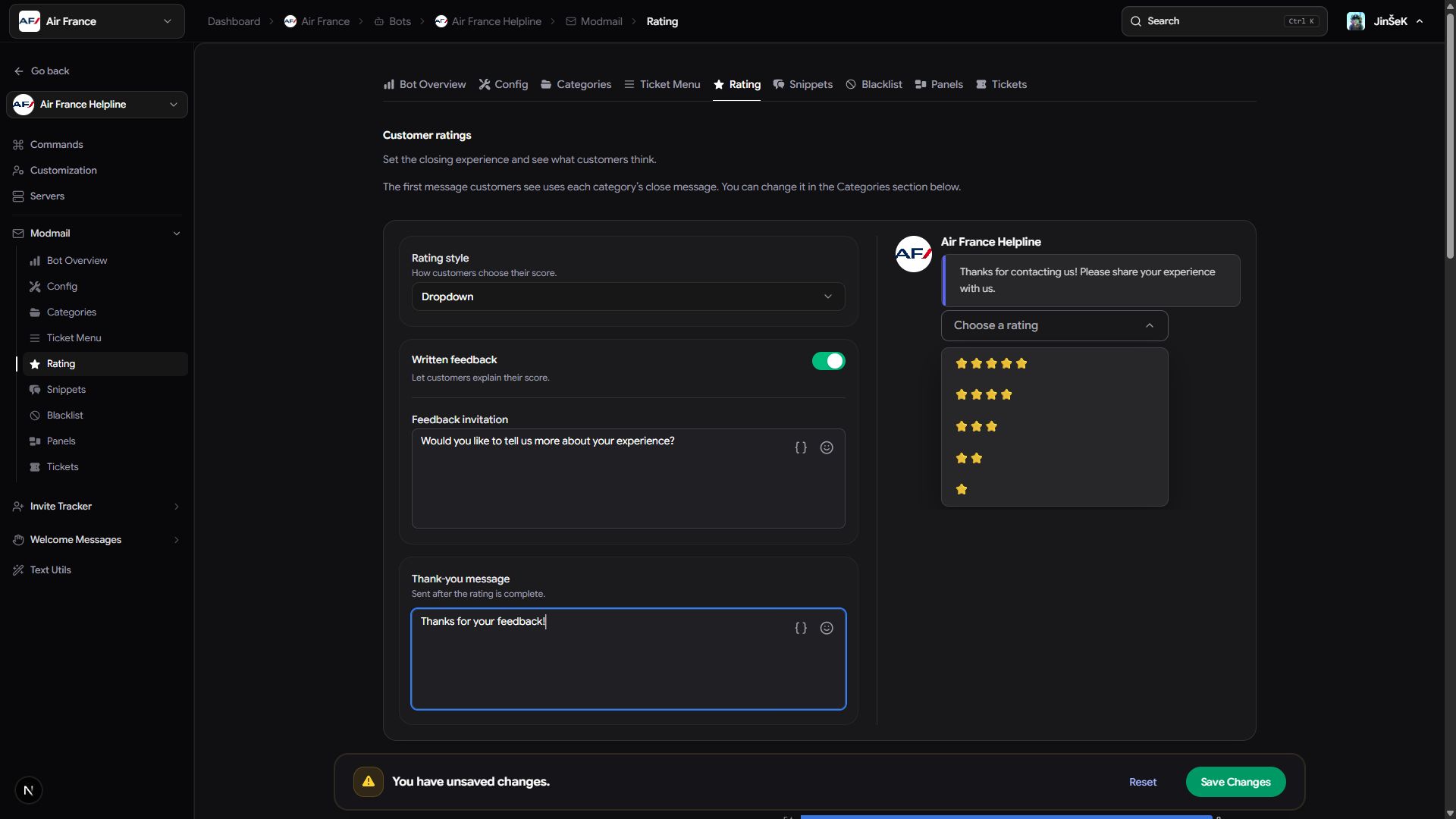
On Rating, set Rating style and check the live preview.
| Style | What the member uses |
|---|---|
| Dropdown | A Choose a rating menu with scores from five stars to one. |
| Buttons | Five buttons from one star to five, with red for one and green for five. |
Both styles collect the same scores. Choose the one that fits your messages.
Offer written feedback
Turn on Written feedback to let members explain their score. Comments are optional; members can submit stars without writing anything.
Customize the messages shown during feedback:
- Feedback invitation asks the member whether they want to say more. The default is "Would you like to tell us more about your experience?"
- Thank-you message finishes the exchange. The default is "Thanks for your feedback!"
Each message accepts up to 1,000 characters and supports template variables. Keep them short enough to read alongside the rating controls.
Choose categories and overrides
In Categories on the Rating page, decide which conversations get a prompt.
- Find the category and set Ask for a rating.
- Open its Advanced Options if it needs different settings.
- Set its Close message, up to 2,000 characters, if you want your own wording above the rating controls.
- Enable overrides only for the settings you need to change: Rating style, Written feedback, Feedback invitation, or Thank-you message.
- Select Save changes.
An Overrides active badge identifies customized categories. Turn an override off to follow the bot's defaults again.
Without a category close message, an enabled rating prompt uses "Thanks for contacting us! Please share your experience with us." Set the category's close message if you want different wording.
Check a completed ticket
Close a test ticket normally and review the prompt in the member's DMs. Ratings require both the bot's Customer ratings setting and the category's Ask for a rating choice. A silent close can suppress the prompt too.
Saved changes apply to future closures. Prompts already sent keep their previous settings.
Next steps
Follow the member's rating experience, then review your results.
Last updated on