Build your snippet library
Create and maintain saved replies your whole support team can use.
Save answers your team uses often as snippets. Staff can send the same up-to-date greeting, policy, or instructions without retyping them in each ticket. Each bot has a shared library.
Open the library
Select your group and bot in the dashboard, then open Modmail > Snippets. You need Manage Modmail for that bot; group owners also have access.
Use Search snippets… to search titles and content. Filters show all snippets, those with or without a close button, and those created by you or others. The list shows ten per page. With more than three snippets, you can sort newest or oldest first, or alphabetically in either direction.
Create a saved reply
Write each snippet as a complete answer that staff can recognize by title.
- Select Create a new snippet.
- Enter a required Snippet Title, such as "Refund policy."
- Write the required Content.
- Optional: Select Add variable to personalize the reply.
- Optional: Enable Close button so the member can choose to close the ticket after reading it.
- Review the preview and select Create.
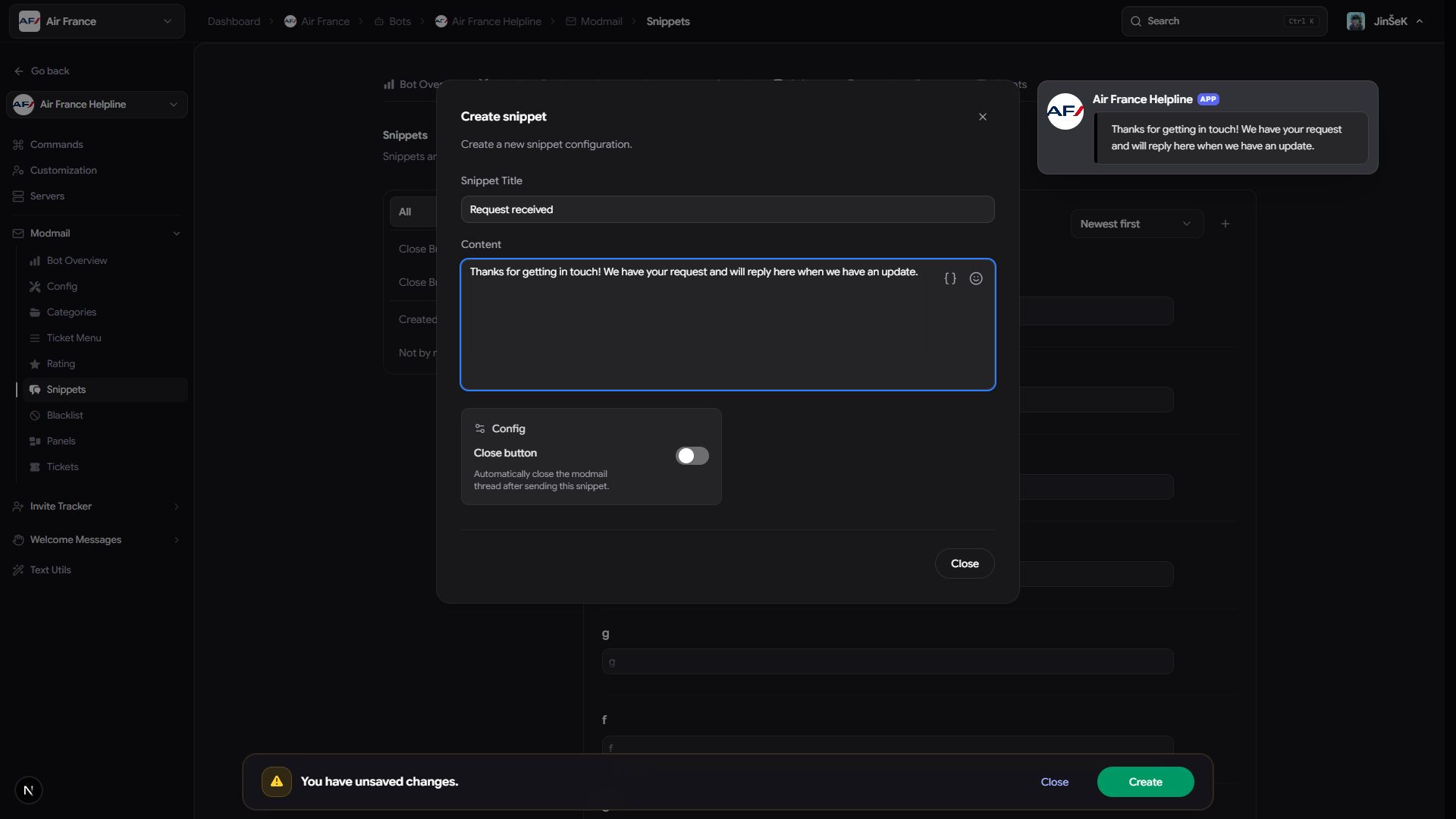
The close button doesn't close the ticket just because the snippet was sent. It adds a red Close button for the member to use.
Keep delivered content within 4,096 characters. Titles and content have no fixed editor length limit, but longer delivered replies are shortened.
Update an answer
Select a snippet or its pencil icon to open the editor. Change the title, content, or close-button setting. Author Details shows who created it and when.
Select Save Changes to make the update available for future sends, or Reset to discard unsaved edits. Messages already sent aren't changed. Updating a shared answer is easier to maintain than keeping several versions with similar names.
Send snippets automatically
Categories can use a Welcome snippet after the opening message and a Close snippet at the end of the conversation. Both use the same library as manual sends. Keep automatic messages suitable for every ticket in the categories that use them.
Delete a snippet
Review Used in flow in the snippet editor before deleting. Follow its links and replace any automatic uses that still need an answer.
- Select the snippet's trash icon in the list or editor.
- Review the confirmation.
- Confirm deletion to remove it permanently from the shared library.
There's no restore action. Deleting a snippet used automatically leaves those uses without that reply, so reassign them first.
Next steps
Send or preview a snippet in chat, or personalize it with template variables.
Last updated on