Build your Ticket Menu
Add support choices, arrange submenus, and preview the path before saving.
Arrange your support choices on Ticket Menu, preview the member's path, then save to publish your changes. Each ticket-opening action needs a category from your library.
Open the builder
In your group's dashboard, select your bot, then open Modmail > Ticket Menu. You need dashboard permission to manage Modmail for that bot. If you can't open it, ask the person who manages your Dashboard Roles.
Choose a menu style
Select one of the three style cards at the top.
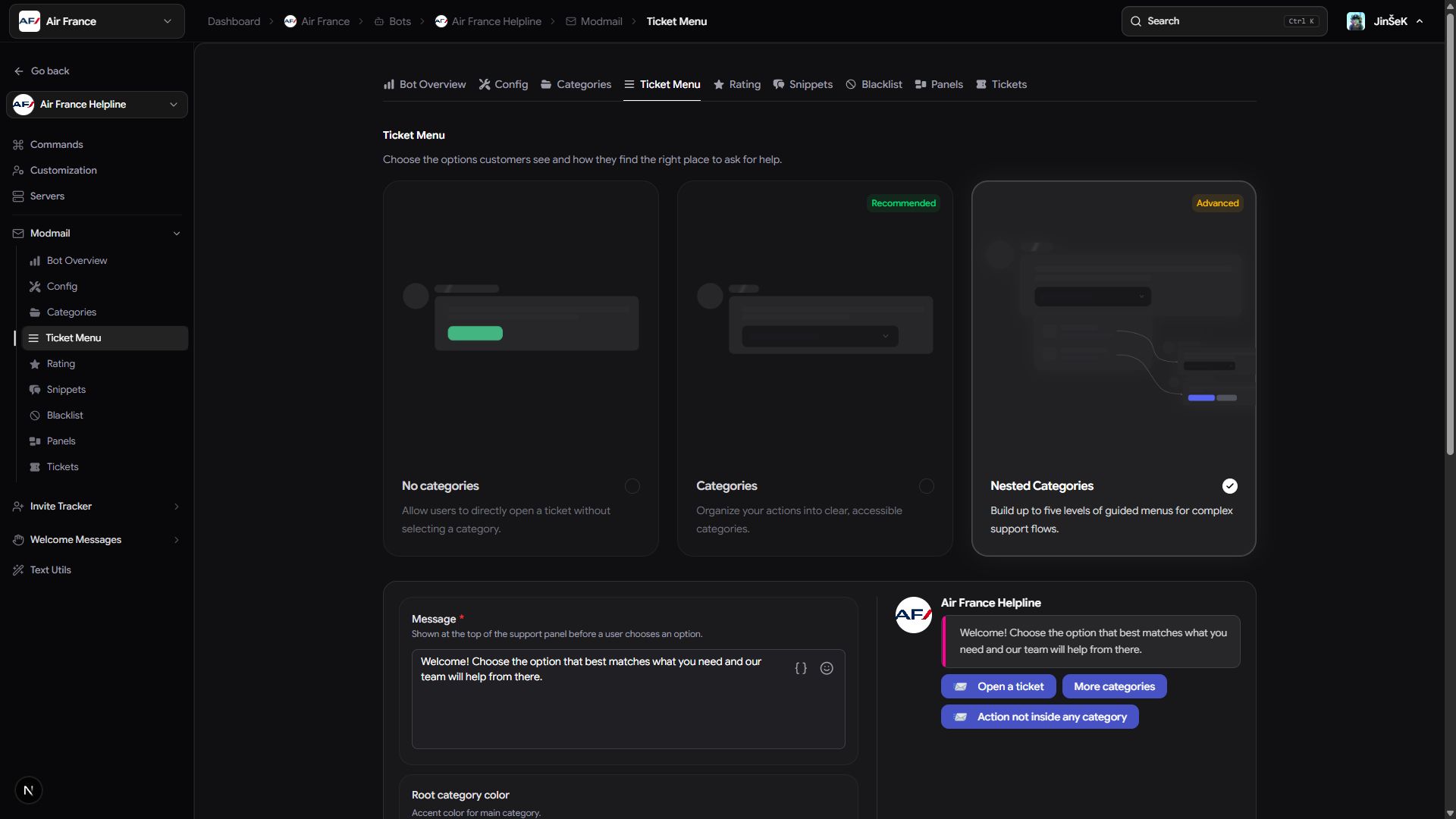
| Style | What you build |
|---|---|
| No categories | One ticket route, with optional Ask before opening a ticket confirmation. |
| Categories | One top-level list of ticket actions. |
| Nested Categories | Groups and actions arranged up to five levels deep. |
When switching styles, read the confirmation carefully. Moving to No categories keeps one route; leaving nested categories can remove nested entries from your draft. The dialog lists what changes. Those changes apply when you save; Reset discards them.
An empty Categories menu can offer starter templates. You can use one or build your own.
Add an action
An action opens a ticket in the category you choose.
- Select Create Action on an empty menu, or Action above the entries.
- Choose its Category.
- Enter its Name and optional Description, Emoji, and Button Color.
- Confirm the editor.
- Select Save Changes when you're ready to publish.
Use the presentation override switches when this menu entry needs different wording or emoji from the linked category. Routing stays with the category.
For No categories, use the single-route editor to select the category, name the route, and decide whether members must confirm first.
Add and arrange submenus
With Nested Categories, use Create Category or Category to add a menu group. Give it a title and choose how its contents display. A menu group organizes choices; it isn't a new ticket destination in the category library.
Drag entries by their handles to reorder them or place them inside a group. A selected group's plus menu also offers Add category and Add action. You can't place a group inside itself or its descendants, and branches can't exceed five levels. From level four, a badge reminds you of the limit.
Edit and remove entries
Select a row to open its editor beside the tree, or in a dialog on smaller screens. Changes stay in your draft until you save.
To remove an entry, select its remove button, read the confirmation, and select Remove from menu. Removing a group removes its contents too. The linked categories stay in your library. Select Reset to discard all unsaved changes, including removals.
Preview and save
Use the preview to check the message, labels, and path through each submenu.
- Set the root message and the dropdown or button display settings.
- Select each entry and check its label, description, and emoji.
- Walk through nested groups as a member would.
- Select Save Changes.
If saving is blocked, complete the named field or choose a valid destination for the flagged action. No partial menu is published.
The saved menu applies to new DM ticket flows. Already-posted static panels keep their captured choices; send a fresh copy if you want them to show the updated menu.
Next steps
Last updated on